Code Editor Extended Features
Code Editor provides advanced text editing functionality, such as customizable keyboard mapping, HyperText handling, spell-checking integration, printing and exporting, macro recording and playback, and miscellaneous display features.
Keyboard Mapping
While the SyntaxEditView closely mimics the key-mapping common to most of Microsoft's products. It is entirely customizable: you can add or change the behavior of specific keys or even define an entirely different key-mapping.
To assign an action to some key combination, use the following code:
    private void edit_Action()
    {
    ...
    }
    ...
    edit.KeyList.Add(Keys.W | Keys.Control | Keys.Alt, new
    KeyEvent(edit_Action));
This code would make the Ctrl+Alt+W key combination execute the edit_Action method.
Or to pass some object to the key handler:
    private void edit_Action(object o)
    {
    ...
    }
    ...
    edit.KeyList.Add(Keys.W | Keys.Control | Keys.Alt, new
    KeyEventEx(edit_Action), some_object);
To remove some key handler, regardless of whether you have added it yourself or it is the default one, call:
edit.KeyList.Remove(Keys.A | Keys.Control);
The code described before is used to manage the key handling in the default state. In fact, the key handling is slightly more complex than that: the SyntaxEditView's key handling mechanism can be in different states other than the default one. Every state has its own key mapping table. Key mapping for bookmark operations can be a good example: after the user presses the Ctrl+K key combination, combinations Ctrl+K, Ctrl+N, Ctrl+P, Ctrl+L (the list is incomplete) obtain the new meaning. If a key combination is pressed for which there is no assignment in some non-default state, then the state is changed to default, and the combination is evaluated in the new context. SyntaxEditView defines four different non-default states, but you can implement your own:
    edit.KeyList.Add(Keys.W | Keys.Control, null, 0, 5);
    edit.KeyList.Add(Keys.Tab, new KeyEvent(edit_Action), 5, 5);
This code creates a state that is activated by pressing the Ctrl+W key combination, in which the Tab key causes the edit_Action to be executed. The state is changed back to default when the user presses some key other than the Tab key. Until now, we have only examined the cases where you add some new functionality or suppress some existing one. There also might be a case when you want to use an entirely different key mapping, for example, to simulate some other environment your users are familiar with. To accomplish this, it is necessary to completely clear the current key mapping and then assign every function performed by the editor to some key. Note that this means every function: even such trivial things as cursor navigation and insertion of a new line, are performed according to the key mapping.
For example, the following code assigns the editor's key-mapping to a single action defined: "Select All", which is assigned to the Ctrl+X key combination.
    edit.KeyList.Clear();
    edit.KeyList.Add(Keys.X | Keys.Control,
    ((EventHandlers)edit.KeyList.Handlers)SelectAllEvent);
URL handling
The SyntaxEditView can be set up to handle pieces of text that look like some kind of URL by setting the HighlightHyperText property to true. The handling consists of highlighting those text pieces and processing clicks on them. By default, clicking the URL causes the operating system default action to be performed (i.e., launching a browser or an email client). However, you can override this behavior by assigning the JumpToUrl event handler.
    private void edit_JumpToUrl(object sender, UrlJumpEventArgs e)
    {
        if(is_our_url(e.Text))
        {
            process_url(e.Text);
            e.Handled = true;
        }
    }
Spellchecker Interface
The SyntaxEditView supports the spell-as-you-type spell checker integration. To enable spelling for the editor, set its CheckSpelling property to true and assign the WordSpell event handler.
The following artificial example considers any word longer than three characters to be correct:
    private void edit_WordSpell(object sender, WordSpellEventArgs e)
    {
        e.Correct = e.Text.Length > 3;
    }
    ...
    this.edit.WordSpell += new WordSpellEvent(this.edit_WordSpell);
Incorrect words are displayed with the wiggly underline (the default color is red, but it can be changed using the SpellColor property). In real-life scenarios, you need to use some third-party software/dictionary to check the text. Another alternative is using a word-list file. Many of them, including Public Domain or free ones, can be found on the Internet. Refer to a Miscellaneous quick start project, which has one of these dictionaries.
Another helpful feature supported by SyntaxEditView is AutoCorrect, allowing you to auto-correct words when typing. To enable this feature, you need to set the AutoCorrection property to true and handle the AutoCorrect event to provide replacements for words that were typed incorrectly.
Printing and Exporting
SyntaxEditView includes support for printing, print previewing, and exporting to RTF and HTML.
Exporting can be performed as simply as this:
edit.Editor.SaveFile(FileName, new RtfExport());
Printing tasks are performed and configured via the Printing property of the SyntaxEditView.
For example, to show the print preview dialog, call:
edit.Printing.ExecutePrintPreviewDialog();
SyntaxEditView control supports adding user-defined information while printing.
To add some text to the footer:
edit.Printing.Footer.CenterText = "draft";
Text in headers and footers can contain substitution tags. The standard ones are: [page], [pages], [date], [time] and [username].
Macro Recording and PlayBack
SyntaxEditView has macro recording and playback capabilities. It allows recording sequences of keyboard commands and playing them later. Note that mouse input is not recorded.
This feature enables you to store a set of frequently used editing commands. Set MacroRecording property to start/finish macro recording. Use the PlayBack method to repeat the stored command sequence.
White-space Display
It is sometimes desirable for the user to see the codes that influence the text's layout and are usually invisible. These codes are space, tab, end-of-line, and the end-of-file (not really a code) and are often collectively referred to as white space. The TextEditor has the option to display them and control their appearance.
Line Separator
It is possible to have lines of the editor to be separated by thin horizontal lines and to have the current line highlighted. This behavior is controlled by the LineSeparator property.
The following options are available:
HighlightCurrentLine specifies that the current line in the editor will be highlighted using the HighlightColor for the background.
HideHighlighting specifies that the highlighting of the current line should be hidden when the editor loses focus.
SeparateLines specifies that a thin horizontal line of LineColor should be drawn between each line of text.
SeparateWrapLines specifies that each visual line of text produced as a result of word-wrap should be separated in the same manner as separate lines (works only if the SeparateLines option is also specified).
SeparateContent specifies that a line separator will be drawn between sections of the code (for example, between methods) if TextEditor control is associated with SyntaxParser supporting this feature.
Code snippets
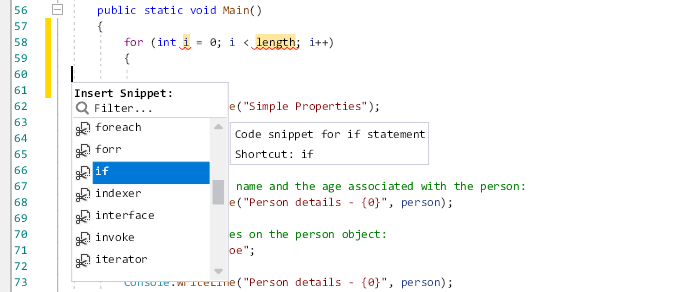
The code snippets are the next code completion provider, allowing to insertion of frequently used fragments of code. Code snippets can be inserted into the editor by pressing the Tab key after the snippet shortcut or by executing the code snippet popup window with Ctrl + K + X key sequence, or activated programmatically by calling the CodeSnippets method of the SyntaxEditView.
The purpose of the code snippets is to permit the user to quickly enter one of the predefined fragments of text. If the code snippet has fields declared, the editor allows modifying their values, causing updating field values inside the whole snippet.
The following picture illustrates the usage of the code snippets.
Minimap
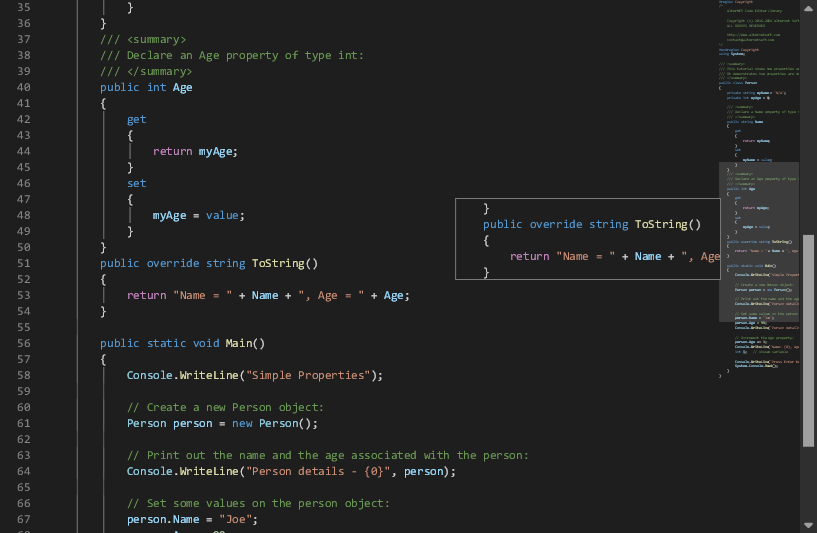
A Minimap (code outline) gives you a high-level overview of your source code, which is useful for quick navigation and code understanding. A file's minimap is shown on the right side of the editor. You can click the shaded area to quickly jump to different sections of your file.